-
New InqScribe video tutorials
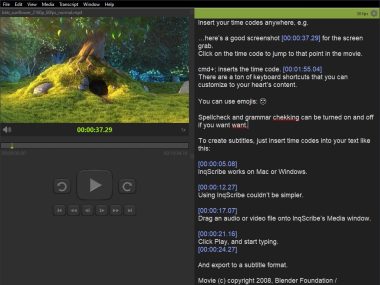
Posted on May 21st, 2010 No commentsInqScribe is so easy to use, who needs tutorials, right? Well, a little background can’t hurt, so we created four new introductory video tutorials that provide (1) a basic overview of InqScribe, (2) an introduction to shortcuts and snippets, (3) tips on using time codes, and (4) an introduction to subtitling. They’re all a part of our revamped home page.
-
Tip: Inserting the current time of day.
Posted on April 15th, 2010 No commentsYou can insert the current time of day into your transcript. This is useful for instance, if you’re taking notes during a meeting or video shoot. Later when you import the media, you can sync the start time to your video.
For example, let’s say you’re shooting an interview, and it begins at 1:00pm. While you’re doing the interview, you can take notes in InqScribe, noting when a particularly interesting conversation happens by inserting the current time. For instance, if the interviewee says something interesting 12 minutes and 3 seconds into the interview, you can insert a time stamp next to your note about that with one keystroke, e.g.:
“[01:12:03.00] T didn’t know it at the time.”
Alternatively, instead of using time of day, you can also use a stopwatch.
How do you do this? Just set the Media Source to an Offline Media type and select “Use time of day” or “Use stopwatch timer”.
Here are detailed instructions:
1. Create a new transcript “FIle->New Document…”
2. Click on the “Select Media Source…” button
3. In the “Source Type” popup menu, select “Offline Media”
4. Under “Time Code:” select the “Use time of day” radio button.(Or you can select “Use stopwatch timer” and select a start time and end time.)
Then just type away as you normally would, using Command-; or (Ctrl-; in Windows) to insert the current time. Instead of using the media time, InqScribe will now insert the current time of day, or the stopwatch time.
-
We’re Tweeting
Posted on November 28th, 2009 No commentsInqScribe is now on Twitter. We think this will be a great way to share quick tips and information about using InqScribe and related media tools. You can track our tweets on the sidebar of this blog, or follow InqScribe on Twitter.
-
InqScribe 2.0.5 is compatible with Snow Leopard
Posted on September 1st, 2009 No commentsWhile we do have a new version of InqScribe expected soon, the current version, 2.0.5, works fine with the new Snow Leopard Mac OS (10.6).
In general, if you do have problems with InqScribe, please report it to us using the InqScribe Help menu’s “Report a Bug…” feature. This provides us with a little more information to help us more quickly troubleshoot the problem.
-
TIP: How can I convert my “[00:01:23.29]” timecodes to “00:01:23.29″ (remove brackets)?
Posted on August 6th, 2009 No commentsI have an existing InqScribe transcript that uses bracketed timecodes: [00:01:23.29]
I want to use unbracketed timecodes: 00:01:23.29
—
Here’s how you can do the conversion:
1. Open the existing transcript in InqScribe.
2. Select “Transcript->Transcript Settings…” from the menu bar.
3. Under the “Inserted Time Code Format:” select “00:01:23.29″ from the popup menu.
4. Check the “Recognize Unbracketed Time Codes” checkbox.
5. Click “OK” to close the window.
6. Select “Transcript->Adjust Time Codes…” from the menu bar.
7. Leave the “Adjustment:” field blank, and click “Adjust.” This will reformat all of your time codes to the unbracketed format.
—
To change ALL of your future transcripts to use the unbracketed time codes…
…On a Mac:
1. Select “InqScribe->Preferences…” from the menu bar.
2. Click on the “New Document” tab at the top of the “InqScribe Preferences” window.
3. Under the “Inserted Time Code Format:” select “00:01:23.29″ from the popup menu.
4. Check the “Recognize Unbracketed Time Codes” checkbox.
…On Windows:
1. Select “Edit->Options…” from the menu bar.
2. Click on the “New Document” tab at the top of the “InqScribe Preferences” window.
3. Under the “Inserted Time Code Format:” select “00:01:23.29″ from the popup menu.
4. Check the “Recognize Unbracketed Time Codes” checkbox.
By the way, there are a number of other formats that you can use as well.
-
TIP: How to bold timecodes in Microsoft Word
Posted on August 5th, 2009 No commentsInqScribe currently does not support bold text. However, you can use Microsoft Word’s “Find and Replace” feature to bold text. Here’s how you can do that:
1. Export your transcript to Microsoft Word. (You can just cut and paste.)
2. Select “Edit->Replace…”.
3. Click on the triangle next to the “Replace All” button to reveal the advanced options.
4. Check the “Use wildcards” option.
5. Under “Find what:” enter this:
[^#^#:^#^#:^#^#.^#^#]
NOTE this assumes that you’re using the default timecode format. If you’re using another timecode format, just format the colons and periods accordingly. Each “^#” matches a digit. For example, if your timecode looks like “<00:00:00.00>” use “<^#^#:^#^#:^#^#.^#^#>”.
6. Click in the “Replace with:” field.
7. From the popup menu at the bottom of the window called “Format” select “Font…” and then click on “Bold”, then click “OK”. The “Replace with:” field should say “Format: Font:Bold” underneath it.
8. Click on “Find Next” to make sure it works — does Word find the first timecode? If so, then try clicking “Replace” to see if it bolds it. If it does, then you can use “Replace All” to bold all of the timecodes.
-
Welcome to InqScribe News
Posted on April 29th, 2009 No commentsWelcome to the new InqScribe News! We’ve tidied up a bit and moved over to a shiny new blogging engine.
The older InqScribe News site is still available, but we’ll be posting new information here, including notes on development, bug reports and workarounds, and tips for getting the most out of InqScribe. We hope you’ll follow along.