
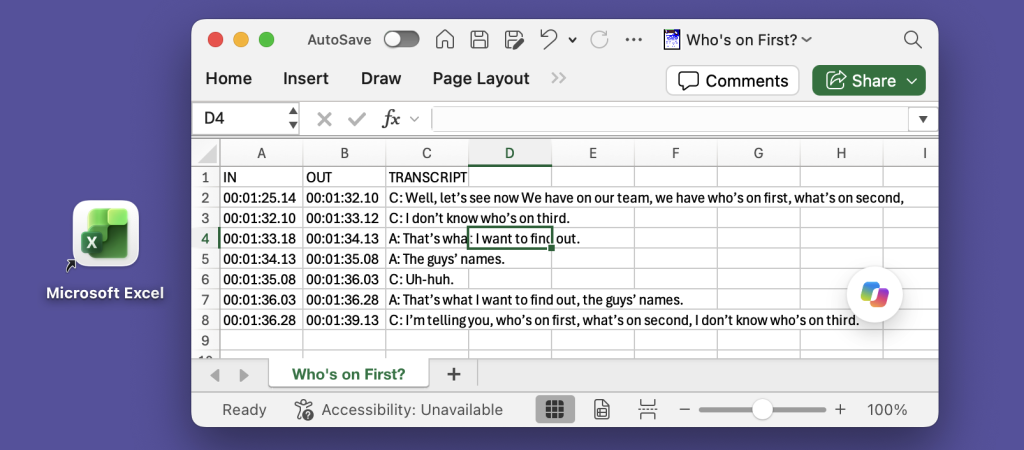
Many of our customers need to export transcripts in a structured format, with separate columns for “In” and “Out” points and speaker names. This is particularly useful for captions, especially for broadcast. One common workflow is to export an Excel spreadsheet, where each line effectively becomes a record. For example:
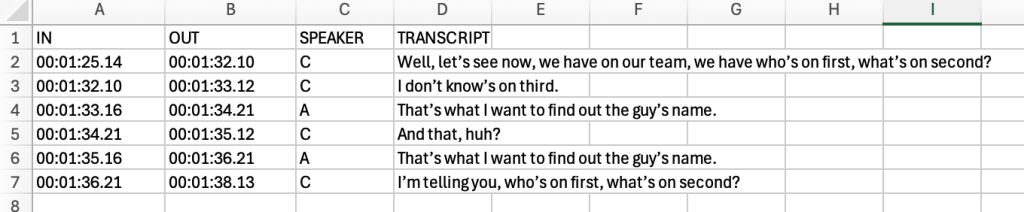
InqScribe’s free-form edit field provides a lot of flexibility, but sometimes a bit of structure is helpful, especially for transcripts. InqScribe has a number of built-in tools that can help you create transcripts like this, including:
- Handling speaker names
- Handling In and Out timecodes
- Exporting to tab-delimited text for import into Excel
The key is to first format your transcript, then export the transcript to “Tab-delimited text,” then import into Excel.
1. Formatting in InqScribe
Use colons (:) for Speaker Names
InqScribe can recognize speaker names when using the tab-delimited text exporter. InqScribe expects the following format for each record (line):
[IN]SPEAKER: Utterance[OUT]So for example, if you enter your text like this:
[00:00:00:00]NAME ONE: Some random text[00:00:01:00]
[00:00:01:00]NAME TWO: Here is some more random stuff[00:00:03:00]
then InqScribe can export each line as a record/row for import into Excel.
Edit your transcript to match this format, inserting a speaker name with a colon and adding [IN} and [OUT] timecodes.
TIP: If you skip the [OUT] timecode, InqScribe will automatically use the next [IN] timecode as the [OUT], so it’s OK to skip it if the OUT timing is not critical.
TIP: If you’re using our Whisper automatic transcription, be sure to select “[IN] Text [OUT]” for the “Line Format” to automatically enter in and out points.
TIP: You can use another character as a delimiter, you don’t have to use a colon. Just note the delimiter character during the export in the next step.
2. Exporting to Tab-delimited Text
The Tab-delimited Text exporter will export each line of the transcript with tabs separating each field, e.g. : in <tab> speaker name <tab> text <tab> out
Excel can then import these files and convert each line into a field (column) for each row.
Once you have your transcript formatted correctly, you want to export the transcript to “Tab-delimited Text”.
- In InqScribe, select File > Export > Tab-delimited Text…
- Make sure “Export Out Points” is checked
- Check “Export Speaker Names”
- Assuming you’re using a colon (:) as the speaker name delimiter, leave the “:” in the “Speaker Name Delimiter” field. (Or enter your own delimiter character.)
- Enter a name for the file. Click “Choose” if you want to select a folder other than the current directory.
- Click “Export”
The resulting text file will look something like this (note the tabs are invisible):
IN OUT SPEAKER TRANSCRIPT
00:00:00.00 00:00:01.00 NAME ONE Some random text
00:00:01.00 00:00:03.00 NAME TWO Here is some more random stuff
Now you’re ready to import into Excel.
3. Importing to Excel
When importing to Excel, Excel needs a little bit of extra information to know how to handle the import:
- Import as text, choose tab delimited
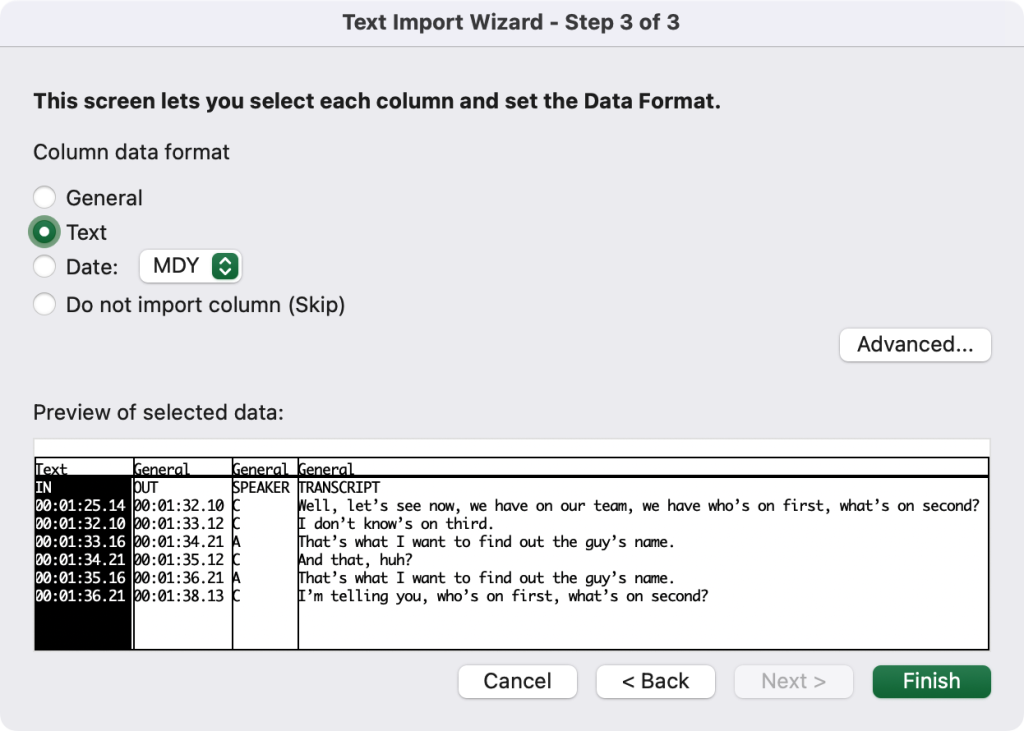
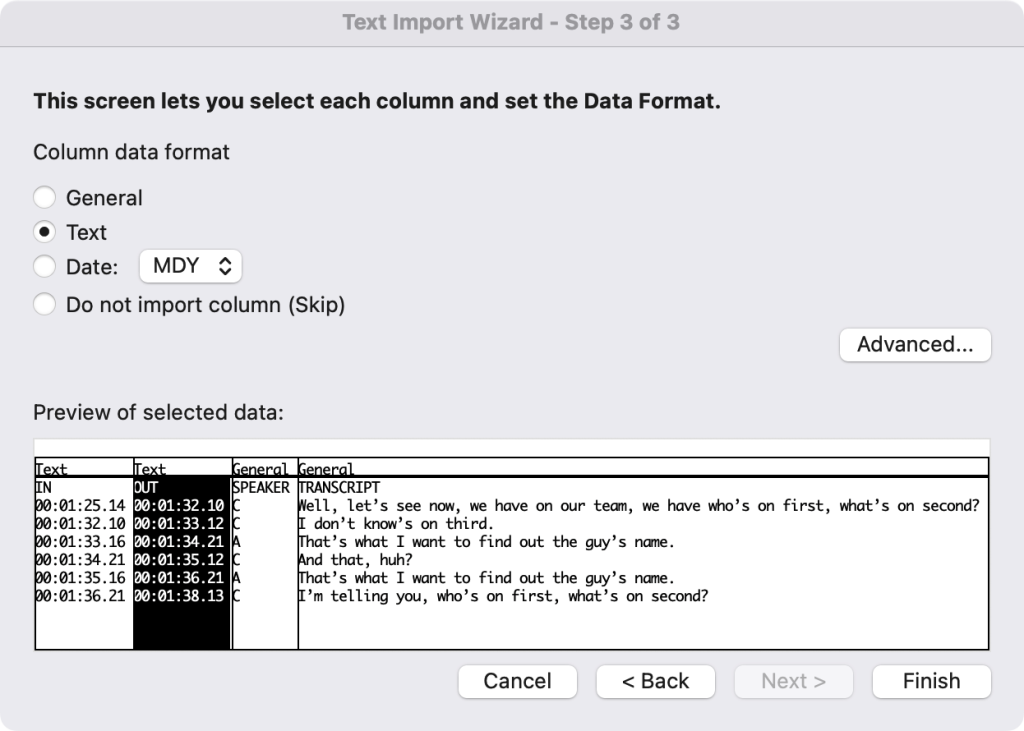
- For each IN and OUT column, make sure you select “Text” (not “General”) for formatting or Excel will try to treat the timecodes as numbers (e.g. trailing zeroes will be removed)
- Re-order and rename the row headers as you need (e.g. “dialogue”, “in cue”, etc.)
Here’s a step-by-step:
- Start Excel
- Select File > Open and select the tab-delimited text file
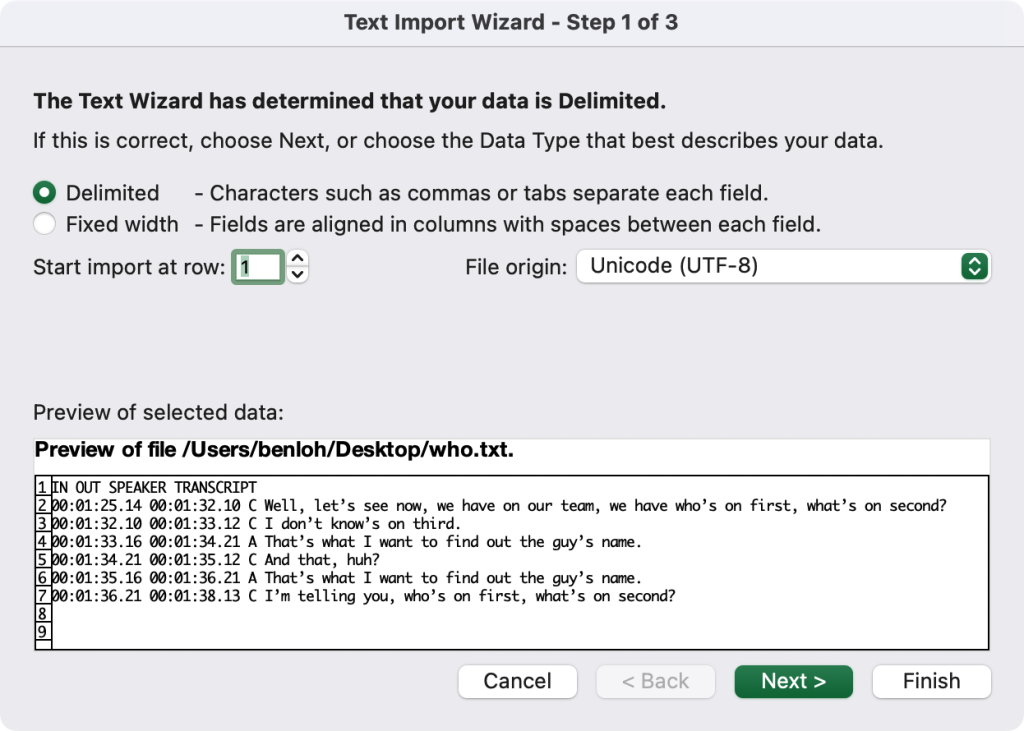
- Excel should automatically detect that you want to import a text document. In the “Text Import Wizard – Step 1 of 3” make sure “Delimited” is selected and click “Next”
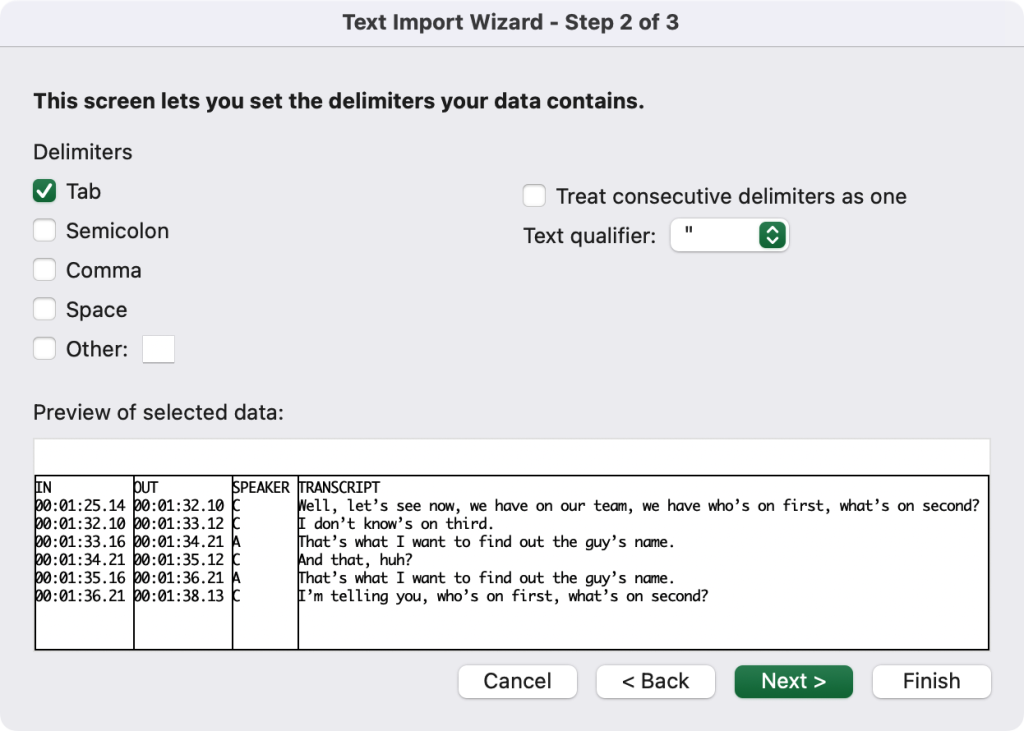
- In the “Text Import Wizard – Step 2 of 3”, make sure “Tab” is selected and click “Next”
- In “Text Import Wizard – Step 3 of 3″…
- …click on the first column “IN” in the Preview below and click on the “Text” radio button
- …click on the second column “OUT” in the Preview below and click on the “Text” radio button
- Click “Finish”
- Review the resulits
You might find that you have to do this a few times to resolve formatting and other issues.
You can of course use Excel to rename and re-order the columns if necessary.
We hope you find this helpful.
We are always looking for ways to improve workflows, so if you have suggestions or questions, please don’t hesitate to reach out to us. We learn a lot from our customers and many new features make their way in through these kinds of suggestions.
Please Contact Us with any questions or suggestions! And tell your friends!

Comments are closed.