
One of our most requested features is text styling. Transcription services sometimes require formatting. Researchers find it helpful to use styles for coding. Writers find it useful for expression.
While we have long considered adding support for text styling, we decided to keep InqScribe documents simple for a number of reasons, including performance, simplicity of interface, simplicity and universality of text storage formats across different operating systems, and ensuring that timecode formatting is distinctive and not lost relative to other styles.
At the same time, we recognize that sometimes styles can be very helpful. While InqScribe does not support styles directly, there is a simple free workaround: use Markdown.
Markdown is a Simple Text-based Solution
Markdown is a text based format specification for defining text styles. (See the original specification by John Gruber: Markdown Syntax.)
It’s an ingenious solution because it retains the simple text-based styling common in the early days of text-only email and is very intuitive and legible. For example, **this is bold text**, this is ~strikethrough~. It also supports a number of standard features like bulleted lists, ordered lists, and URL links.
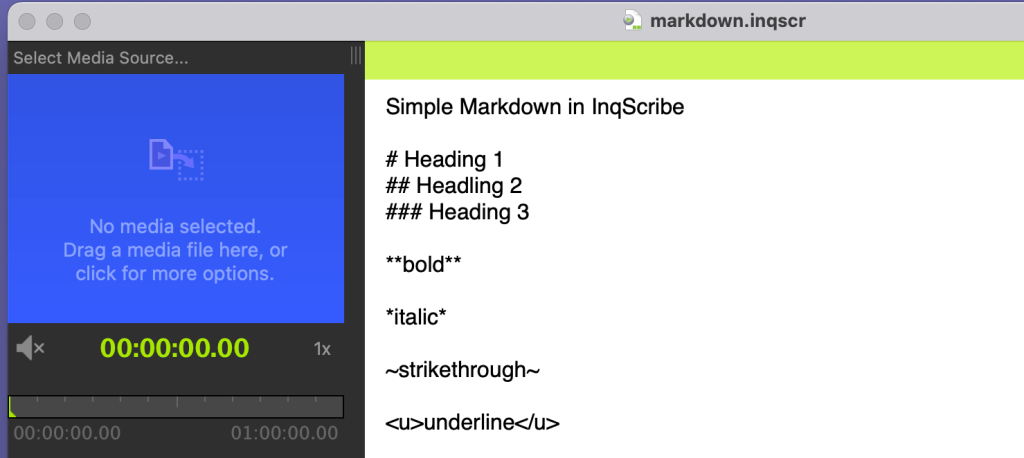
So, to style your InqScribe transcript, you can just insert markdown codes. For example, this is an InqScribe transcript with markdown formatting:
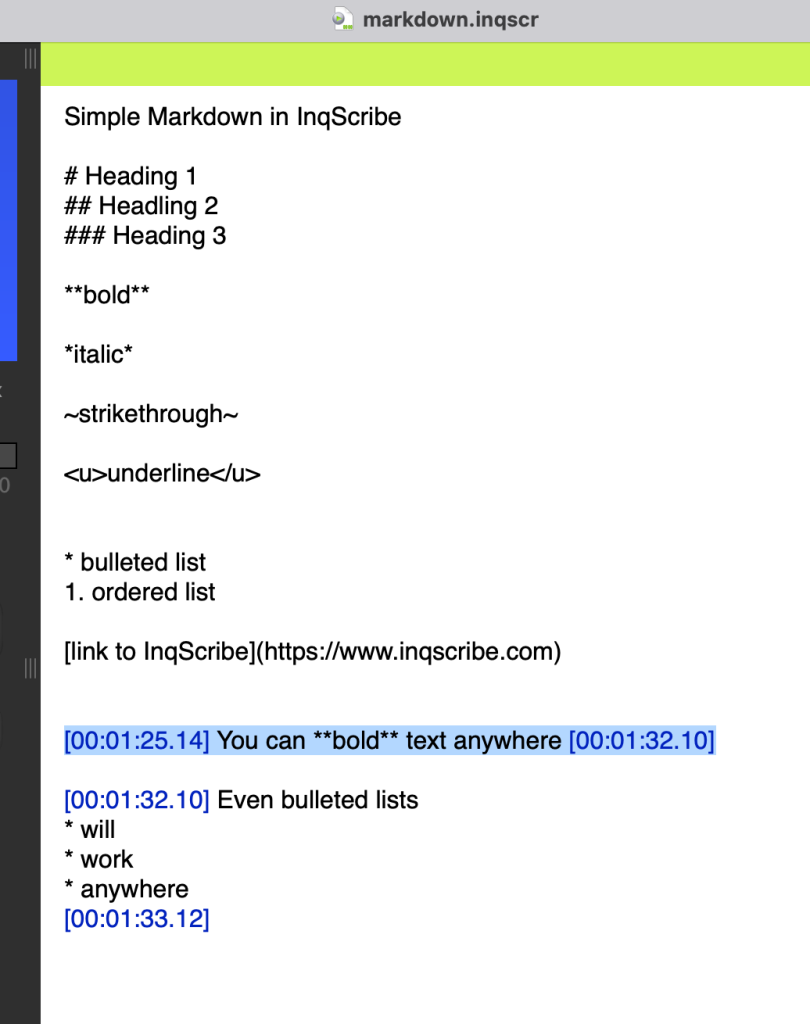
The transcript is quite legible with simple styling.
Of course, what we really want is visible styling. For that, we can use an application that will render the markdown as visual styles. While there are many applicaitons that can render markdown, one free widely available solution is Google Docs.
Rendering in Google Docs
Using Google Docs to render the markdown is pretty easy.
- Open a new Google Doc
- Make sure Markdown is enabled:
- Go to Tools > Preferences
- Check the box next to “Enable Markdown“
- In InqScribe, select and Copy the text
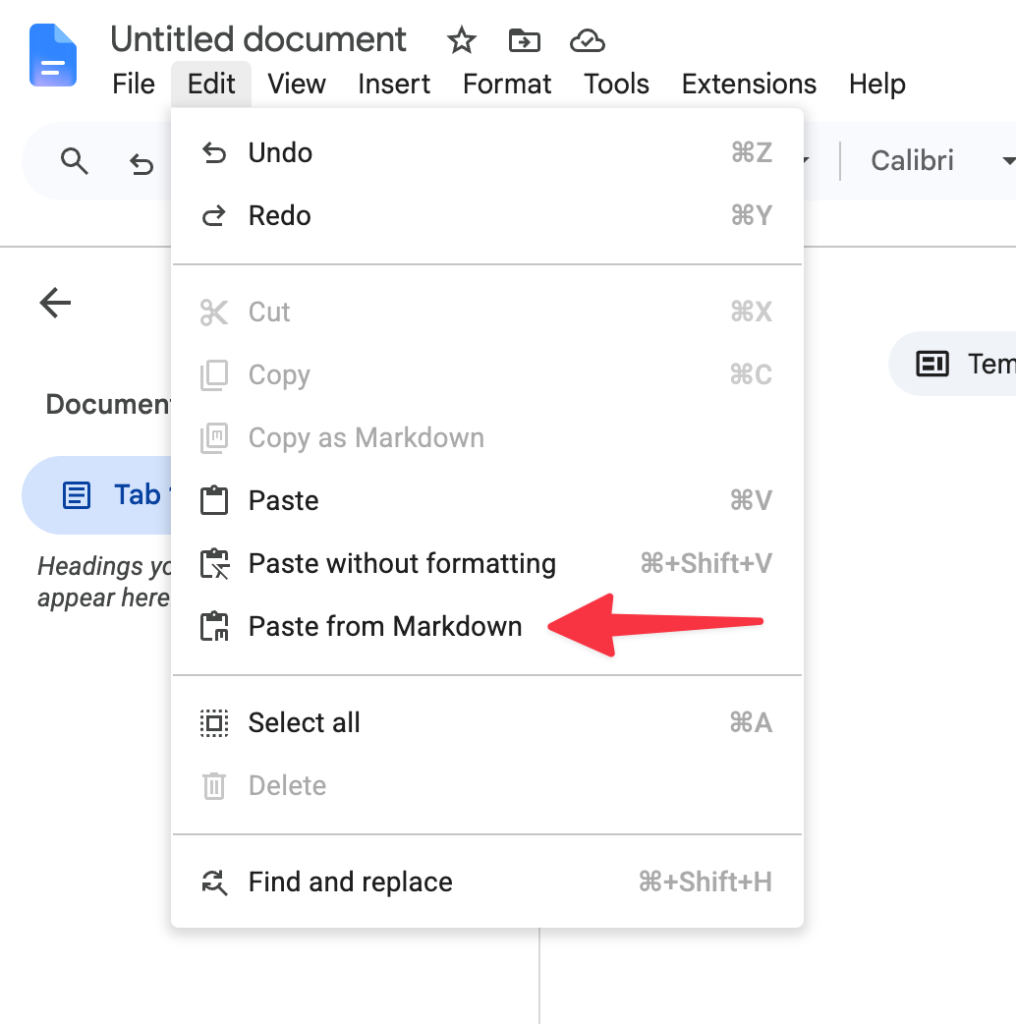
- In Google Docs, select Edit > Paste from Markdown (Note this the “Edit” menu inside of the Google Docs window, not your browser’s Edit menu)
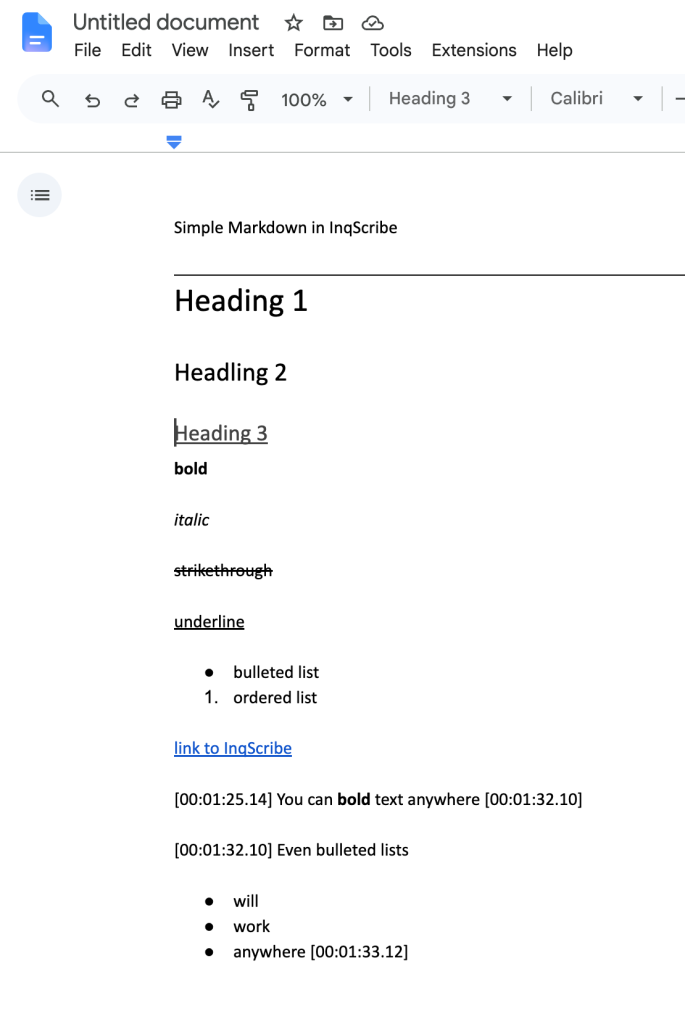
Et voila: The text is rendered!
If you make some edits in Google Docs and then need to use it again in InqScribe…
- In Google Docs select the text
- Select Edit > Copy as Markdown (Note this the “Edit” menu inside of the Google Doc browser window, not your browser’s Edit menu)
- In InqScribe paste the text
All of your edits and the markdown text should be retained.
Watch out for Delimiters
If you need to do a round trip back to InqScribe (e.g. copy the markdown text from Google Docs back into InqScribe), you may need to address some delimiter issues that Google Docs introduces: Google Docs will try to use a “/” to delimit time code square brackets “[” and “]”.
Workaround 1: Remove “/”
One workaround is to simply do a search and replace for “\” after pasting back into InqScribe. e.g. the nice InqScribe transcript…
[00:01:25.14] You can **bold** text anywhere [00:01:32.10]…becomes cluttered with “/” when pasted back into Google Docs like this…
\[00:01:25.14\] You can **bold** text anywhere \[00:01:32.10\]Just do a search and replace to remove them.
Workaround 2: Use alternative timecode formats: () or {}
Another workaround is to use an alternative timecode format, e.g. parentheses () or curly brackets {}. Google Docs will not introduce delimiters when copying markdown out of Google Docs.
Another workaround would be to use another markdown application.
Alternatives to Google Docs
There are many many markdown-enabled applications, many of which will give you a live preview of the styled text, many are free. A quick search will give you plenty of choices.
Unfortunately Word does not seem to provide native Markdown support.
Personally I like Typora because of how it handles both an editable preview mode and a raw code view. (There is a free trial). If you need to edit the markdown and then re-paste into InqScribe, copy and paste the raw markdown and Typora will not insert delimiters.
Tips/Caveats
Some things to watch out for:
- Markdown formats are not quite standard. You’ll find some variations across different applications, and some (like underline) are not standard and may not be supported at all, so you’ll need to test them to see how well they work.
- For some editors, you may need to explicitly copy the text in markdown format for re-pasting into InqScribe. This varies from tool to tool. For instance, if there is a separate Raw Markdown and a Styled Preview, select the text from the Raw Markdown view. Otherwise what is copied is styled text, which strips out the markdown codes.
- If privacy is a major concern for you, the use of Google Docs can be problematic. A desktop application where data does not leave your computer, (e.g. Typora) is one possible solution.
- Since InqScribe documents are essentially text, you can of course introduce other coding styles and just copy and paste them into different viewers. e.g. HTML, custom codes (<laughs>), etc.
If you want to try it yourself, here’s some text that you can copy and paste into InqScribe and Google Docs:
Simple Markdown in InqScribe

# Heading 1
## Headling 2
### Heading 3

**bold**

*italic*

~strikethrough~

<u>underline</u>


* bulleted list
1. ordered list

[link to InqScribe](https://www.inqscribe.com)


[00:01:25.14] You can **bold** text anywhere [00:01:32.10]

[00:01:32.10] Even bulleted lists
* will
* work
* anywhere
[00:01:33.12]
As always, please Contact Us with any questions or suggestions! And tell your friends!

Comments are closed.