-
InqScribe 2.1 Released!
Posted on January 4th, 2011 No commentsHappy New Year!
We just released version 2.1 of InqScribe!
- InqScribe can now insert time code series, e.g. “lay down a time code every 30 seconds”
- Improved support for Final Cut Pro users.
- Improved handling of backups and file recovery.
- And of course, a few bug fixes.
Read the release notes for more details.
InqScribe 2.1 is a free upgrade.
Download 2.1 now.
-
Why the evaluation license window is shrinking
Posted on December 11th, 2010 No commentsIf you’ve requested an evaluation license for InqScribe recently, you may have noticed that we’re handing out licenses that expire January 1. That’s about three weeks away. Normally we give you guys licenses that are good for about 5-6 weeks.
There’s a reason for this: the set of evaluation licenses for InqScribe 2.0 are running out. We plan to release InqScribe 2.1 very soon, and once it’s out the 5-6 week evaluation license window will return.
We encourage everyone to request a new evaluation license for InqScribe 2.1, even if you’ve already asked for one for InqScribe 2.0. And version 2.1 will be a free update for all of our registered users.
Happy Holidays!
-
Modern Advertising Antics
Posted on December 4th, 2010 No commentsI was tweaking our google adwords account for InqScribe when I came upon this site: transcriptionsoftwareformymac.com/.
And I thought “Cool! A review of InqScribe!” The review was lukewarm, although they did raise some valid points. I wanted to clarify a few things so I started to look for someone to contact.
But there was no contact information. Hmm… that’s strange, usually someone writing a review normally wants to take credit for their work. Why are there no names?
So I did a little more poking around. transcriptionsoftwareformymac.com is registered to a Joshua Nozzi, and its domain servers use bartastechnologies.com.
Transcriva, of course, is an InqScribe competitor, and is a product of bartastechnologies.com, which is run by one Joshua Nozzi.
We’re happy to compare InqScribe on its merits against other transcription solutions. If Joshua wants to make those comparisons, that’s fine. But he ought to be willing to stand behind his work and not try to pass it off as a neutral review.
I should also point out that this raises significant doubts about the validity of that little “poll” Joshua is running on the blog.
As Phil Harvey used to say, now you know… the rest of the story.
-
Guest Blog: How documentary filmmakers transcribe and subtitle with InqScribe
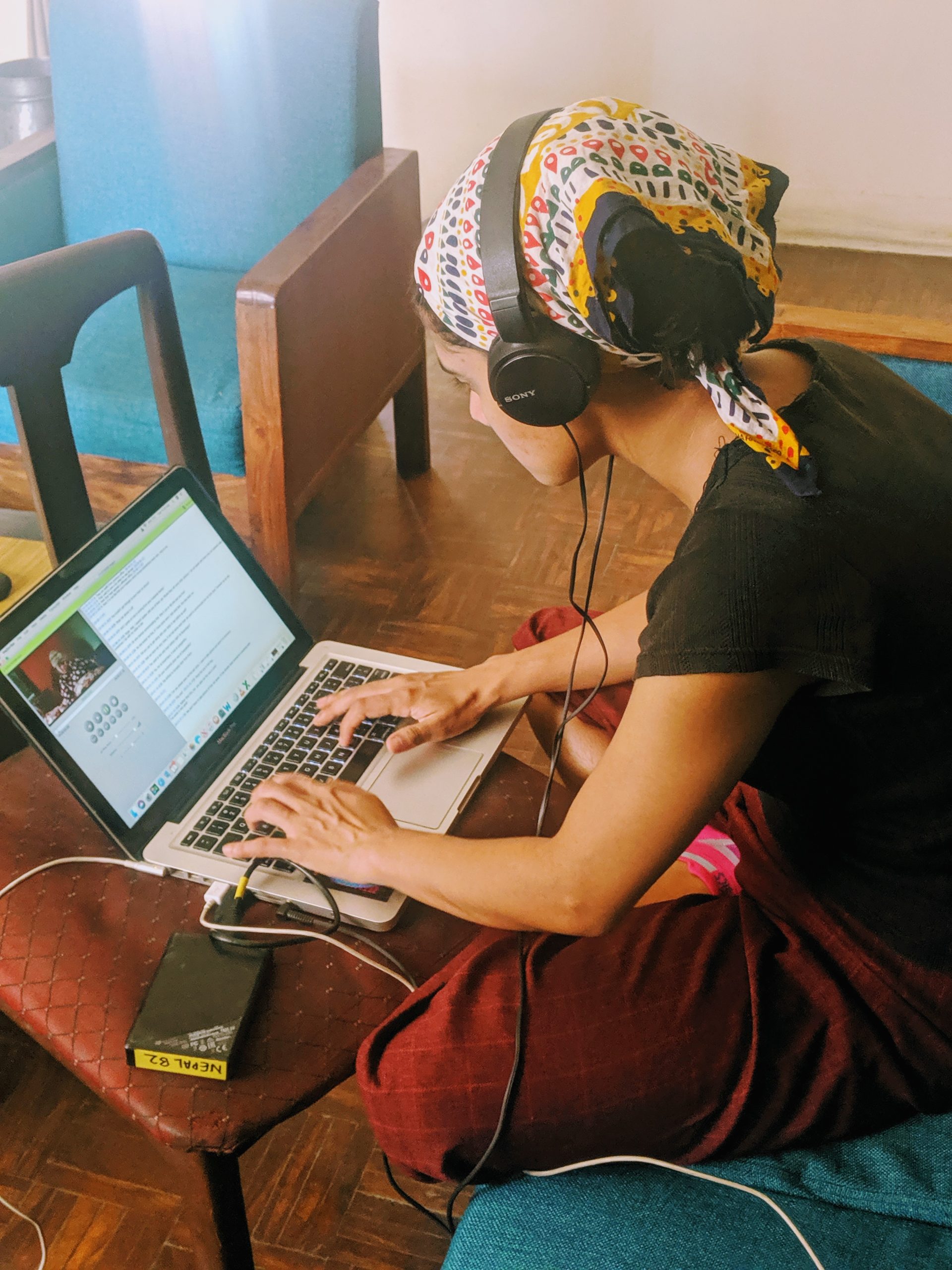
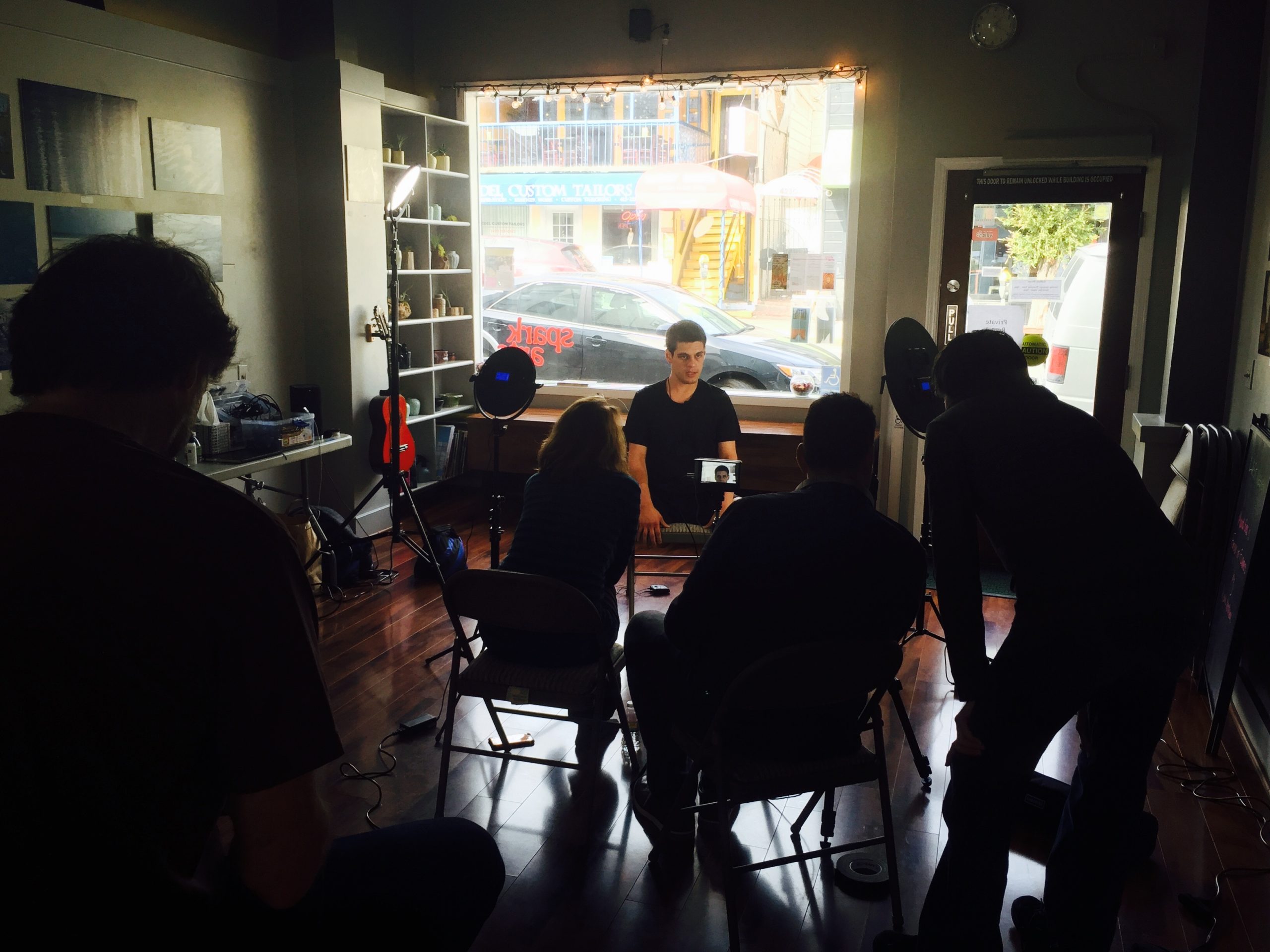
Posted on October 16th, 2010 No commentsInqScribe has many different kinds of users. But the majority of our users can be categorized into three groups: university researchers, professional transcriptionists, and documentary filmmakers.
To highlight how our folks are using the tool, we would like to do an occasional feature where we invite our users to be guest bloggers.
Here’s our first guest blog from a pair of award-winning documentary filmmakers. We were particularly interested in how they might be using InqScribe as part of their translation and transcription workflow, so we asked them to elaborate:
—
By Dianne Griffin and Erica Jordan
Digall Media, a 501(c)(3) organization founded by Erica Jordan and Dianne Griffin is currently in production on their one-hour documentary Painted Nails – a Vietnamese immigrant story of exotic nail art, pampered clients, and the serious health risks that lurk beneath the brightly painted surface.
We’re excited about using Inquirium’s product InqScribe to transcribe dialogue and create English subtitles for our Vietnamese and Spanish speaking characters. We’re still fine-tuning the workflow of importing subtitles, generated with InqScribe, into Final Cut Pro. It took some time to figure out the importing and exporting specs, but it was worth trouble-shooting. We can now transcribe dialogue in InqScribe with timecode, export it as an XML file using a custom FCP XML template. When the XML file is imported into Final Cut, the subtitles (as text elements) magically appear on a new timeline. InqScribe’s support page offers to look at your files to help trouble-shoot subtitling issues. InqScribe works great with a foot pedal, saving valuable post-production time.
Filmmaking is hard enough; it’s great to find a product such as InqScribe to make it easier.
Please contact us at info@inquirum.net if you’re interested in highlighting your work.
-
New InqScribe video tutorials
Posted on May 21st, 2010 No commentsInqScribe is so easy to use, who needs tutorials, right? Well, a little background can’t hurt, so we created four new introductory video tutorials that provide (1) a basic overview of InqScribe, (2) an introduction to shortcuts and snippets, (3) tips on using time codes, and (4) an introduction to subtitling. They’re all a part of our revamped home page.
-
Tip: Inserting the current time of day or Transcribing while videotaping
Posted on April 15th, 2010 No commentsYou can insert the current time of day into your transcript. This is useful for instance, if you want to take notes while you are recording during a meeting or video shoot. Later when you import the media, you can sync the start time to your video.
For example, let’s say you’re shooting an interview, and it begins at 1:00pm. During the interview, you can take notes in InqScribe, noting when a particularly interesting conversation happens by inserting the current time. For instance, if the interviewee says something interesting 12 minutes and 3 seconds into the interview, you can insert a time stamp next to your note about that with one keystroke, e.g.:
“[01:12:03.00] T didn’t know it at the time.”
Alternatively, instead of using time of day, you can also use a stopwatch synced to the start of the video recording.
How do you do this? Just set the Media Source to an Offline Media type and select “Use time of day” or “Use stopwatch timer”.
Here are detailed instructions:
1. Create a new transcript “FIle->New Document…”
2. Click on the “Select Media Source…” button
3. In the “Source Type” popup menu, select “Offline Media”
4. Under “Time Code:” select the “Use time of day” radio button.(Or you can select “Use stopwatch timer” and select a start time and end time.)
Then just type away as you normally would, using Command-; or (Ctrl-; in Windows) to insert the current time. Instead of using the media time, InqScribe will now insert the current time of day, or the stopwatch time.
-
We’re Tweeting
Posted on November 28th, 2009 No commentsInqScribe is now on Twitter. We think this will be a great way to share quick tips and information about using InqScribe and related media tools. You can track our tweets on the sidebar of this blog, or follow InqScribe on Twitter.
-
InqScribe 2.0.5 is compatible with Snow Leopard
Posted on September 1st, 2009 No commentsWhile we do have a new version of InqScribe expected soon, the current version, 2.0.5, works fine with the new Snow Leopard Mac OS (10.6).
In general, if you do have problems with InqScribe, please report it to us using the InqScribe Help menu’s “Report a Bug…” feature. This provides us with a little more information to help us more quickly troubleshoot the problem.
-
TIP: How can I convert my “[00:01:23.29]” timecodes to “00:01:23.29″ (remove brackets)?
Posted on August 6th, 2009 No commentsI have an existing InqScribe transcript that uses bracketed timecodes: [00:01:23.29]
I want to use unbracketed timecodes: 00:01:23.29
—
Here’s how you can do the conversion:
1. Open the existing transcript in InqScribe.
2. Select “Transcript->Transcript Settings…” from the menu bar.
3. Under the “Inserted Time Code Format:” select “00:01:23.29″ from the popup menu.
4. Check the “Recognize Unbracketed Time Codes” checkbox.
5. Click “OK” to close the window.
6. Select “Transcript->Adjust Time Codes…” from the menu bar.
7. Leave the “Adjustment:” field blank, and click “Adjust.” This will reformat all of your time codes to the unbracketed format.
—
To change ALL of your future transcripts to use the unbracketed time codes…
…On a Mac:
1. Select “InqScribe->Preferences…” from the menu bar.
2. Click on the “New Document” tab at the top of the “InqScribe Preferences” window.
3. Under the “Inserted Time Code Format:” select “00:01:23.29″ from the popup menu.
4. Check the “Recognize Unbracketed Time Codes” checkbox.
…On Windows:
1. Select “Edit->Options…” from the menu bar.
2. Click on the “New Document” tab at the top of the “InqScribe Preferences” window.
3. Under the “Inserted Time Code Format:” select “00:01:23.29″ from the popup menu.
4. Check the “Recognize Unbracketed Time Codes” checkbox.
By the way, there are a number of other formats that you can use as well.
-
TIP: How to bold timecodes in Microsoft Word
Posted on August 5th, 2009 No commentsInqScribe currently does not support bold text. However, you can use Microsoft Word’s “Find and Replace” feature to bold text. Here’s how you can do that:
1. Export your transcript to Microsoft Word. (You can just cut and paste.)
2. Select “Edit->Replace…”.
3. Click on the triangle next to the “Replace All” button to reveal the advanced options.
4. Check the “Use wildcards” option.
5. Under “Find what:” enter this:
[^#^#:^#^#:^#^#.^#^#]
NOTE this assumes that you’re using the default timecode format. If you’re using another timecode format, just format the colons and periods accordingly. Each “^#” matches a digit. For example, if your timecode looks like “<00:00:00.00>” use “<^#^#:^#^#:^#^#.^#^#>”.
6. Click in the “Replace with:” field.
7. From the popup menu at the bottom of the window called “Format” select “Font…” and then click on “Bold”, then click “OK”. The “Replace with:” field should say “Format: Font:Bold” underneath it.
8. Click on “Find Next” to make sure it works — does Word find the first timecode? If so, then try clicking “Replace” to see if it bolds it. If it does, then you can use “Replace All” to bold all of the timecodes.